
What to Do With Old Hard Drives (Without Leaking Your Data)
Got a pile of old hard drives and SSDs in a drawer? Discover how to reuse, wipe, destroy or recycle them safely, so your old files never end up in someone else's hands.
- Understand why "deleted" files aren't actually gone
- Learn the right way to wipe an HDD versus an SSD
- Know when wiping is enough and when to shred
- Get UK-specific recycling and compliance guidance
Quick Summary: What to Do With Old Hard Drives
In a hurry? Here's the short version of what to do with an old hard drive or SSD:
- Still want to use it? Pop it in an external enclosure for extra backup storage, after wiping it
- Selling or donating the drive? Wipe it thoroughly first, deleting and formatting is not enough
- Held sensitive or business data? Physically destroy or professionally shred it for certainty
- SSD versus HDD: They need different wiping methods, standard erasing doesn't reach every SSD cell
- Finished with it? Recycle it responsibly, hard drives contain valuable, recoverable metals
- Never: Bin a drive with your data on it, or assume formatting has erased anything
Old hard drives have a way of multiplying. One comes out of a laptop you upgraded. Another from a desktop you replaced. A couple of external drives that filled up and got retired. Before long there's a little graveyard of them in a drawer, each one holding goodness knows what.
And that's the problem. Unlike a phone or a laptop, a hard drive is nothing but storage. Every drive in that drawer is a pure, concentrated record of whatever it once held: photos, documents, tax records, saved passwords, work files, browsing history. The case might be scratched and the connector dusty, but the data inside is very likely still completely intact.
Here's the part most people get wrong: deleting your files didn't delete them, and formatting the drive didn't either. Both simply tell the computer that the space is free to reuse. Until something overwrites it, the original data sits there, recoverable in minutes with free software anyone can download. That old drive is a data breach waiting to happen.
The good news is that dealing with old drives properly is straightforward once you know the rules. This guide walks through every sensible option, reusing, wiping, destroying and recycling, with the all-important data security baked into each one. If you'd rather hand the whole job to a specialist, certified data destruction takes the risk off your plate entirely.

First, Understand What's Really on Your Drive
Before deciding what to do with an old hard drive, it helps to understand why simply deleting files leaves you exposed. This single fact changes how you handle every drive you own.
Why "Delete" Doesn't Mean Delete
When you delete a file or empty the recycle bin, the computer doesn't scrub the data. It just removes the signpost pointing to it and marks the space as available. The actual ones and zeros remain on the platters or memory cells until something else happens to overwrite them. Free recovery tools like Recuva can bring "deleted" files straight back.
Formatting Isn't Wiping Either
A quick format does much the same thing, it resets the filing system but leaves the underlying data behind. Even a full format on older drives doesn't guarantee secure removal. This is exactly why deleting files is not GDPR compliant for any business handling personal data.
What a Drive Typically Holds
- Saved passwords and login tokens from browsers
- Banking, shopping and tax documents
- Years of personal photos and videos
- Email archives and message history
- Work files, contracts and client data
That's why every option below starts with the same principle: deal with the data first.
Option 1: Reuse the Drive Yourself
If a drive still works and isn't too old, the greenest and cheapest option is to keep using it. A perfectly good drive has plenty of life left as extra storage.
Turn It Into an External Drive
A cheap external enclosure or a USB docking station turns any bare internal drive into a portable external one. It's ideal for backups, a media library, or archiving photos you don't need on your main machine. Wipe it first, then it's a blank, useful drive.
Use It for Backups
Old drives make excellent dedicated backup targets. Keeping a local backup on a separate drive is one of the simplest ways to protect yourself against ransomware and accidental deletion.
Add It to a Home Server or NAS
If you've built a home server or network storage box, spare drives can expand its capacity or provide redundancy. Just bear in mind that very old drives are more likely to fail, so don't trust irreplaceable data to a single ageing disk.
A Word of Caution on Age
Hard drives have moving parts and a finite lifespan. A drive that's more than five or six years old, or that's been sitting unused for a long time, may be living on borrowed time. Reuse it for non-critical storage, and always keep a second copy of anything important.


Option 2: Sell or Donate It (Carefully)
Working drives, especially SSDs and larger-capacity disks, do have resale value. But this is the option that demands the most caution, because you're handing your storage to a stranger.
If You Sell It
Solid-state drives and high-capacity hard drives sell well on eBay and to PC builders. The absolute rule: wipe the drive securely before it leaves your hands, using the methods in the next section. Never rely on a quick format, and never post a drive "as is" assuming the buyer will erase it.
If You Donate It
Drives are less commonly donated than whole computers, but a charity refurbishing PCs may welcome working storage. Again, wipe it thoroughly first, the charity's priority is reuse, not protecting your old data.
The Honest Recommendation
For most people, the modest sum a used drive fetches isn't worth the data risk if you're not confident about wiping it properly. If a drive ever held anything sensitive, destroying and recycling it is the safer, simpler choice. When in doubt, don't sell it.
Option 3: Wipe It Properly (HDD vs SSD)
If you're keeping, selling or donating a drive, secure wiping is what makes that safe. The crucial thing to understand is that traditional hard drives and solid-state drives need completely different approaches. Treat them the same and you risk leaving data behind on an SSD. For the full comparison of methods, see our guide to hard drive shredding versus wiping.
Wiping a Traditional Hard Drive (HDD)
Spinning hard drives are wiped by overwriting every sector with new data. Free, trusted tools do this for you:
- DBAN (Darik's Boot and Nuke) - Boots from a USB stick and overwrites an entire drive. Ideal for drives not in use.
- Eraser - A Windows tool for overwriting individual files and free space.
A single full overwrite pass is enough to defeat software recovery on a modern HDD. Multiple passes add little for the time they take.
Wiping a Solid-State Drive (SSD)
SSDs store data differently, spreading it across memory cells and moving it around for wear levelling. Standard overwriting can't reliably reach every cell, so the old approach doesn't fully work. Instead:
- Use the manufacturer's secure erase tool (Samsung Magician, Crucial Storage Executive, WD Dashboard and similar), which issues a proper ATA Secure Erase command.
- If the SSD was encrypted from the start (many are by default), a secure erase that destroys the encryption key makes the data unrecoverable instantly.
When Wiping Is Enough
For everyday personal data, a correct secure wipe is genuinely sufficient before selling, donating or reusing a drive. It's only when data is highly sensitive, or when compliance demands proof, that you need to go further.
Option 4: Destroy It (Best for Sensitive Data)
When a drive held genuinely sensitive information, financial records, medical data, business or client files, or anything you'd hate to leak, physical destruction is the only absolute guarantee. There's nothing left to recover from a properly destroyed drive.
DIY Destruction
For a personal hard drive, you can:
- Remove it from the computer (a couple of screws and a cable)
- Drill several holes straight through the body and platters
- Or open it up and damage the platters with a hammer
For an SSD, smashing the small memory chips on the circuit board is the DIY approach, but it's harder to be certain you've destroyed every chip.
Professional Shredding (The Gold Standard)
For complete certainty, and for any business with compliance obligations, professional destruction is the answer. A certified provider shreds drives into tiny fragments and, crucially, issues a certificate of destruction as proof. Innovent's secure data destruction service destroys drives to HMG Infosec Standard 5, with a full audit trail.
Why Businesses Can't Cut Corners
Under UK GDPR, organisations are responsible for personal data right up to the moment it's destroyed. A drive that goes missing or is recovered from a skip is a reportable breach. For any business, certified destruction with documentation isn't gold-plating, it's the baseline.
Option 5: Recycle the Remains Responsibly
Whatever you've done with the data, the physical drive should never go in the bin. Hard drives contain aluminium, steel, copper and small amounts of precious metals worth recovering, and electronic waste is banned from household rubbish in the UK under the WEEE Regulations.
Council Recycling Centres
Your local Household Waste Recycling Centre accepts old drives and electronics free of charge. Find your nearest via the RecycleNow locator. Make sure the data is dealt with before you drop a drive off.
Combined Destruction and Recycling
The neatest solution, especially for a batch of drives, is a service that destroys the data and recycles the materials in one compliant process. Innovent's IT recycling collects your drives free across the UK, destroys the data to standard, and ensures the materials are recovered responsibly, with documentation throughout.
Special Cases: External, NAS and Server Drives
Not every drive is a bare disk pulled from a PC. A few common types need slightly different handling.
External and Portable Drives
These are simply a standard drive inside a case, so the same data rules apply. Many external drives, especially newer ones, come with built-in hardware encryption. If yours was encrypted with a password from day one, securely resetting it is fast and effective. If not, wipe the drive inside as you would any HDD or SSD before passing it on.
NAS Drives
Drives pulled from a network storage box often hold the most concentrated personal data of all, years of family photos, backups and documents. Before retiring a NAS or its disks, log into the unit and use its built-in secure-wipe function, then treat each drive on its own merits. NAS drives are usually high quality and may be well worth reusing once cleaned.
Server and Business Drives
Drives from servers, RAID arrays and business machines are firmly in compliance territory. They frequently hold client records, financial data and other regulated information, and a single overlooked disk can become a reportable breach. For these, skip the DIY route, certified destruction with documentation is the only responsible choice. Read our complete guide to server disposal and decommissioning for the full process.
A Quick Recap
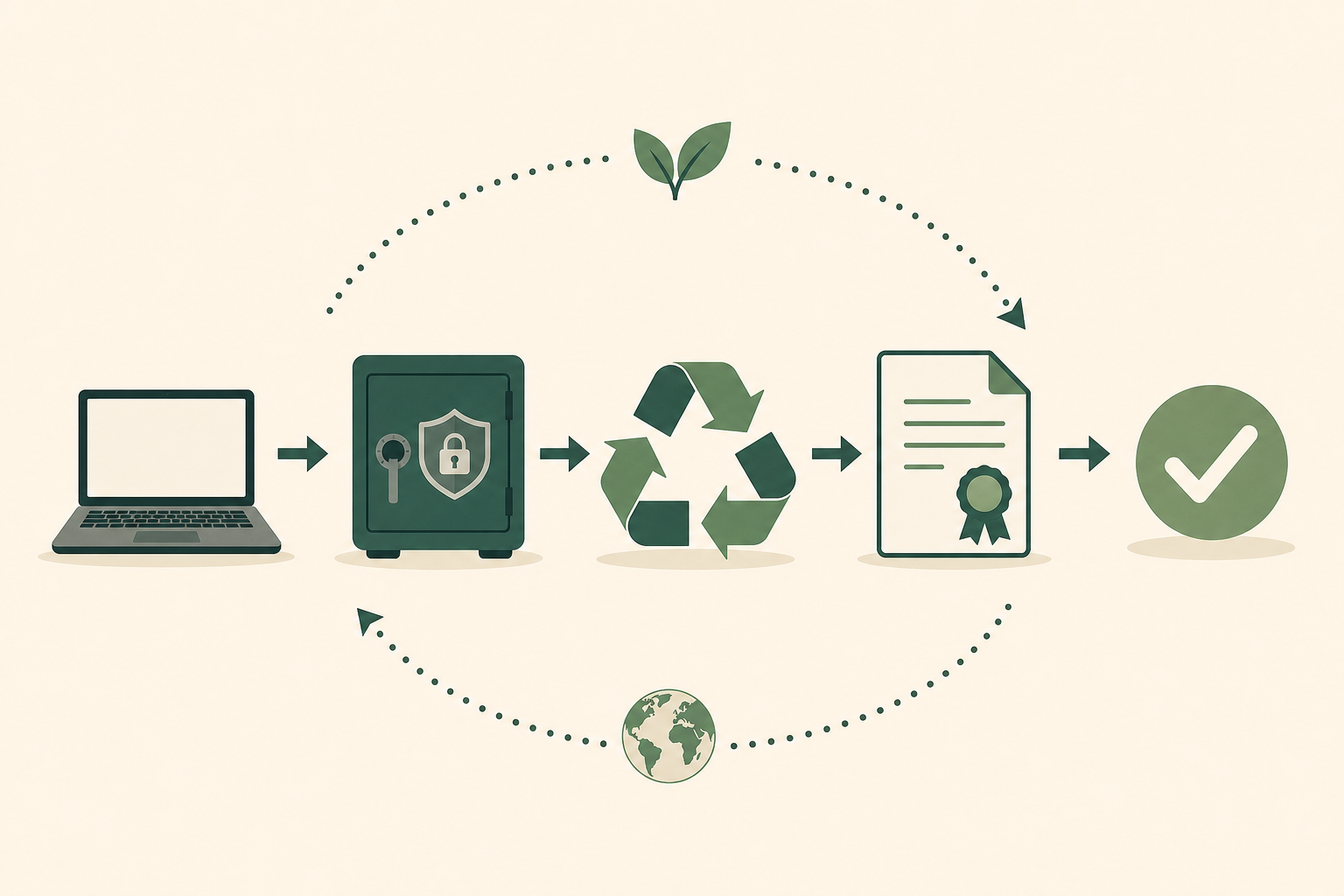
Whatever the drive, the decision flows the same way: deal with the data first (wipe or destroy), match the method to the drive type (HDD versus SSD), escalate to physical destruction for anything sensitive, and recycle the remains responsibly. Get that order right and an old drive is never a risk.
What You Should Never Do
A few mistakes turn a harmless old drive into a real risk. Avoid these.
Don't Bin It
It's illegal under the WEEE Regulations, the materials are wasted, and your data travels with it. A drive in a skip is a gift to anyone who goes looking.
Don't Assume Formatting Erased It
Formatting and deleting leave your data fully recoverable. Treat any drive you haven't securely wiped or destroyed as if it still holds everything it ever did, because it does.
Don't Sell a Drive You're Not Sure You've Wiped
If you have any doubt about whether a drive is properly clean, don't sell or give it away. Destroy and recycle it instead. The few pounds aren't worth a data leak.
Don't Use HDD Methods on an SSD
Overwriting tools designed for spinning drives won't reliably clear an SSD. Use the manufacturer's secure erase, or destroy the SSD physically.
Don't Hoard Them Indefinitely
A drawer of old drives is a growing pile of unmanaged data. Deal with them in one go and remove the risk for good.
Frequently Asked Questions
What should I do with old hard drives?
Decide based on the data and the drive's condition. If it works and you've wiped it, reuse it as backup storage or sell it. If it held sensitive information, physically destroy or professionally shred it. Always recycle the remains responsibly rather than binning them. The golden rule is to deal with the data first, before the drive leaves your hands.
Does deleting files or formatting a drive remove the data?
No. Deleting files and formatting a drive only remove the references to your data, not the data itself. The information stays on the drive until it's overwritten and can be recovered with free software. To remove data securely you need a proper secure wipe or physical destruction, which is also why deleting files is not GDPR compliant.
How do I wipe a hard drive completely?
For a traditional hard drive, use a tool like DBAN to overwrite the entire disk, or Eraser within Windows. For a solid-state drive, use the manufacturer's secure erase utility instead, because standard overwriting doesn't reach every memory cell. A single secure pass is enough to defeat software recovery on a modern drive.
Is wiping a hard drive enough, or should I shred it?
For everyday personal data, a correct secure wipe is sufficient before reusing, selling or donating a drive. For highly sensitive information, or where a business needs proof of compliance, physical destruction or professional shredding is the safer choice because it leaves nothing to recover and comes with a certificate of destruction.
How do I wipe an SSD safely?
SSDs need a different method from hard drives. Use the manufacturer's secure erase tool (such as Samsung Magician or Crucial Storage Executive), which issues a proper ATA Secure Erase command. If the SSD was encrypted, destroying the encryption key makes the data instantly unrecoverable. For maximum certainty with sensitive data, physical destruction is best.
Can I throw an old hard drive in the bin?
No. Under the UK's WEEE Regulations, drives must be recycled properly, and binning one means your data goes with it. Take it to a council recycling centre after dealing with the data, or use a service that destroys and recycles drives in one compliant step.
How do businesses dispose of old hard drives compliantly?
Businesses should use certified data destruction with a full audit trail, because under UK GDPR they remain responsible for personal data until it's destroyed. A specialist like Innovent destroys drives to HMG Infosec Standard 5, issues certificates of destruction, and recycles the materials responsibly, giving you documented proof for audits.
Should I remove the hard drive before recycling a computer?
If you're not certain the drive has been securely wiped, yes, remove it and deal with the data separately. On most computers it's only a couple of screws and a cable. Alternatively, use a certified recycler that destroys the drive for you and provides documentation, so nothing leaves with your data still on it.
Found this guide helpful? Share it!
Help others handle their old hard drives safely



About Innovent Recycling
Innovent Recycling is a UK-based specialist in secure IT asset disposal and recycling. With ISO 27001 certification and Environment Agency T11 exemption, we provide comprehensive, compliant recycling solutions for businesses and individuals across the United Kingdom.
Our services include:
- Certified Data Destruction - HMG Infosec Standard 5 compliant wiping and shredding
- Computer & IT Recycling - Secure, compliant disposal of all IT assets
- WEEE Compliance Management - Full regulatory compliance and documentation
- Nationwide Collections - Free collection service available UK-wide
Trusted by businesses across the UK for secure, compliant IT disposal. View our accreditations and certifications.
Need Certified Drive Destruction?
Have us securely destroy your old hard drives and SSDs, with a certificate of destruction and free UK collection.
Or call us on 0151 355 5482